

Importing My Hand-Built AWS Setup Into Terraform Without Breaking It

Everything this blog runs on — the S3 buckets, the CloudFront distributions, the ACM certs, the Route 53 records — I had started off by hand in the AWS console back in 2022 when the concept came to me as I was working my AWS Certified Solutions Architect exam and applying it to my own personal tech stack. That was fine for getting the site up quickly and figuring out how I wanted to set things up, but none of it was documented in notes or by IaC. Now that I have some free time, I split it into a companion repo, meltan.ca-iac, and spent a few Claude sessions turning all of it into Terraform, wired up to Terraform Cloud.

Writing Terraform for infrastructure that’s already live is a different exercise than writing it for something new. At the start, AWS was the source of truth instead of the IaC. Get a new resource wrong and apply fails, or creates the wrong thing, which you can destroy and reapply. Get an existing resource wrong and apply can decide the safest thing to do is destroy what’s there and recreate it to match your — possibly wrong — HCL. This was a live site and I didn’t want to throw away anything I created. So the rule I held myself to was: write the resource block to match reality, terraform import it, run plan, and don’t move on until it says zero changes. If the diff isn’t empty, the HCL is wrong, not AWS. After all the work, I know that the IaC and the HCL are the source of truth going forward.

Importing the S3 buckets, plan kept turning up differences one attribute at a time — ACLs, versioning, lifecycle rules — none of which I’d written into the config at all. It turns out the AWS provider’s base aws_s3_bucket resource reads a whole set of legacy sub-attributes on every refresh, whether or not you manage them separately, and if the IAM role doing the reading can’t see one of them, Terraform doesn’t error — it just concludes that attribute doesn’t exist and quietly plans to change it. The sharpest version of this: the bucket-existence check calls HeadBucket, which AWS authorizes via s3:ListBucket rather than any dedicated action. Without that one permission, a bucket that was sitting there completely unchanged got read back as deleted, and Terraform planned to recreate the whole thing. Nothing was wrong with the bucket. The IAM policy just couldn’t see it.

I created three environments: stage, prod, and global. I originally didn’t expect to create global but realized it was needed to hold the account-wide stuff — the Route 53 zone, the mail MX records, the site-verification TXT — that doesn’t belong to any one environment.

Importing the DNS zone had its own quiet trap. Route 53 stores TXT record values with the quote marks baked into the string — "google-site-verification=...", literal quote characters and all — but Terraform’s state, after import, holds the same value with the quotes stripped. Write the quotes into your HCL to “match” what you saw in the AWS console, and plan shows a change that doesn’t exist. It’s a small thing, but it’s exactly the kind of small thing zero-diff-before-apply is built to catch, instead of the alternative — applying and quietly rewriting a DNS record you didn’t mean to touch.

Auth was the one place I upgraded rather than just replicated. Rather than generate long-lived AWS access keys and paste them into Terraform Cloud, each workspace authenticates over OIDC — Terraform Cloud presents a signed token, AWS trusts it via an identity provider, and the workspace assumes an IAM role scoped to nothing but what it actually manages. The trust policy is scoped down to the workspace by name, so the staging workspace’s role can’t be assumed by anything claiming to be the production workspace:

1
2
3
4
5
6
7
8
9
10
11
{
"Effect": "Allow",
"Principal": { "Federated": "<oidc-provider-arn>" },
"Action": "sts:AssumeRoleWithWebIdentity",
"Condition": {
"StringEquals": { "app.terraform.io:aud": "aws.workload.identity" },
"StringLike": {
"app.terraform.io:sub": "organization:meltan:project:meltan-ca:workspace:meltan-ca-prod:run_phase:*"
}
}
}

No static credentials sitting in a secrets store waiting to leak — just a workspace proving who it is on every run.

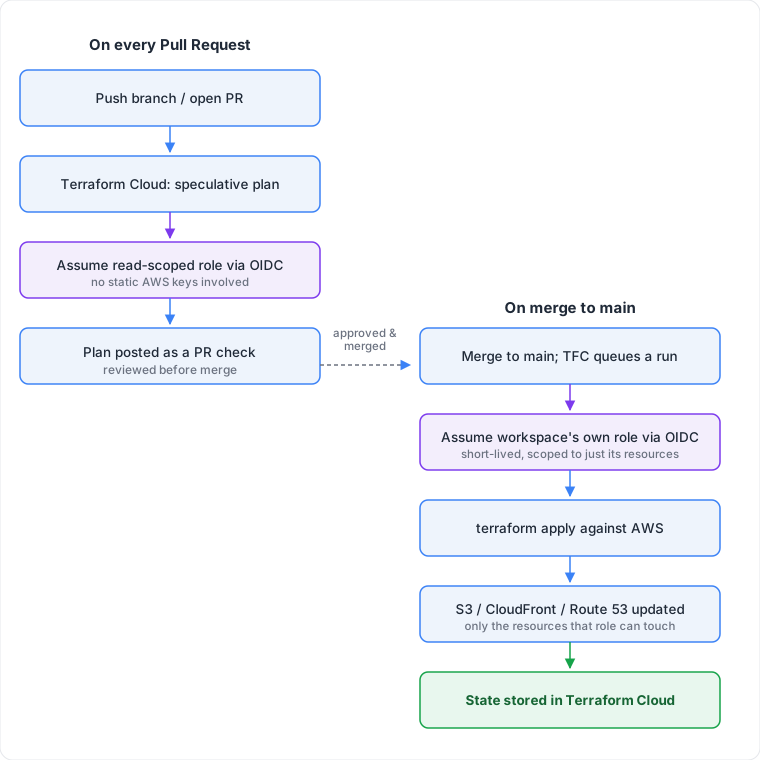
Put together, a PR against meltan.ca-iac triggers a fairly different chain of events than a PR against the blog itself.

Terraform Cloud workflow: on every pull request, Terraform Cloud runs a speculative plan by assuming a read-scoped IAM role in AWS over OIDC and posts the result as a PR check; on merge to main, it queues a real run, assumes the workspace's own scoped role over OIDC, applies the change against AWS, and stores the resulting state in Terraform Cloud

Every plan and apply assumes credentials fresh over OIDC and lets them expire — nothing long-lived is sitting anywhere waiting to be stolen. Next is to convert the GitHub credentials to work with OIDC as well, instead of my traditional access key ID and secret access key.

This blog is being built one step at a time. No huge project plan, just agile development as I discover things along the way. Each step, I am trying to discover what exactly brings me joy in my work. Or in the words of Marie Kondo, “does it spark joy?”

The 403 That Only Showed Up in Production

I shipped what should have been the most boring change possible: replacing the About page’s one-line placeholder with real content. I knew there were going to be problems as I had done the bare minimum testing for this. I only had one post written and was only testing my pipeline, but not the content. Staging looked fine on the PR preview. I merged, production deployed, and https://meltan.ca/about/ came back with a 403.

The first clue was that it wasn’t universal. The homepage loaded fine. Every other path — /about/, /archives/, even a blog post URL — came back AccessDenied. Staging, which I’d just checked, had no problem at all. So it wasn’t the page content, and it wasn’t a general outage. Something about production specifically didn’t know how to serve a directory. This goes to show you what happens when your production setup doesn’t quite match your staging setup. But it was a cost trade-off I was willing to take for a personal blog, but not a mission-critical application. Since I knew my whole setup and this is not complex, it was easy to troubleshoot quickly.

Reading the response headers instead of just the status code got me there fast.

1
2
3
4
HTTP/2 403
content-type: application/xml
server: AmazonS3
x-cache: Error from cloudfront

server: AmazonS3 on a response that came through CloudFront meant CloudFront wasn’t rejecting the request itself — it was faithfully passing along a rejection from S3. And the body confirmed it: <Error><Code>AccessDenied</Code></Error>, the exact response S3 gives when you ask for an object key that doesn’t exist and you don’t have list permissions to say otherwise.

That pointed straight at how the origin was configured. Pulling the distribution config showed the origin was <bucket>.s3.<region>.amazonaws.com — the S3 REST API endpoint, accessed through an Origin Access Identity — with DefaultRootObject: index.html. That setting only applies to the literal root path /. It doesn’t get extended to subdirectories. A request for /about/ asks S3 for the object key about/, which doesn’t exist — only about/index.html does — so S3 says access denied and CloudFront relays it verbatim. Staging worked because it’s served from S3’s static-website-hosting endpoint directly, which resolves directory index documents on its own; production never went through that layer at all.

There were two ways to fix it, and they trade off differently. Point CloudFront at the S3 website-hosting endpoint instead of the REST endpoint, and directory indexing comes for free — but that endpoint doesn’t support origin access identities, so the bucket has to become public-read to work at all. Or keep the REST origin and the private bucket, and add a CloudFront Function that rewrites the request URI before it ever reaches S3. I went with the function — the entire point of putting a static site behind CloudFront with an OAI is that the bucket itself stays private, and I didn’t want to give that up to fix a routing quirk.

The function itself is small — it runs at the viewer-request stage, before the cache lookup:

1
2
3
4
5
6
7
8
9
10
11
12
function handler(event) {
var request = event.request;
var uri = request.uri;

if (uri.endsWith('/')) {
request.uri += 'index.html';
} else if (!uri.includes('.')) {
request.uri += '/index.html';
}

return request;
}

Paths ending in / get index.html appended. Paths with no file extension (someone requesting /about instead of /about/) get /index.html appended. Anything that looks like an actual file — .css, .js, .svg, .xml — is left alone. This is the standard pattern AWS documents for exactly this S3-plus-OAI setup, and it’s a handful of lines running at the edge instead of a second copy of the bucket policy to maintain.

If this is a problem you face, then here is your fix. Every value that matters — both ETags, the function ARN — comes from parsing the previous command’s own output. Nothing gets typed in by hand, nothing gets fat-fingered from a terminal scrollback, and the whole sequence can be re-run or scripted without a human in the loop copying values between windows.

1
2
3
4
5
6
7
8
9
10
11
12
13
14
15
16
17
18
19
20
21
22
23
24
25
26
27
28
29
30
31
32
33
34
35
36
37
38
39
40
41
42
43
44
45
# 1. Create the function and capture its ETag + ARN directly from the response
cat > append-index-html.js << 'EOF'
function handler(event) {
var request = event.request;
var uri = request.uri;

if (uri.endsWith('/')) {
request.uri += 'index.html';
} else if (!uri.includes('.')) {
request.uri += '/index.html';
}

return request;
}
EOF

CREATE_OUTPUT=$(aws cloudfront create-function \
--name append-index-html \
--function-config Comment="Append index.html for directory-style requests",Runtime="cloudfront-js-2.0" \
--function-code fileb://append-index-html.js)

FUNCTION_ETAG=$(echo "$CREATE_OUTPUT" | jq -r '.ETag')
FUNCTION_ARN=$(echo "$CREATE_OUTPUT" | jq -r '.FunctionSummary.FunctionMetadata.FunctionARN')

# 2. Publish it
aws cloudfront publish-function --name append-index-html --if-match "$FUNCTION_ETAG"

# 3. Pull the distribution config and attach the function to the default
# cache behavior's viewer-request event, without hand-editing the JSON
DIST_ID="<your-distribution-id>"

aws cloudfront get-distribution-config --id "$DIST_ID" > dist-config.json
DIST_ETAG=$(jq -r '.ETag' dist-config.json)

jq --arg arn "$FUNCTION_ARN" '
.DistributionConfig
| .DefaultCacheBehavior.FunctionAssociations = {
"Quantity": 1,
"Items": [{"FunctionARN": $arn, "EventType": "viewer-request"}]
}
' dist-config.json > dist-config-updated.json

# 4. Apply the update and invalidate the cache so old 403s don't linger
aws cloudfront update-distribution --id "$DIST_ID" --if-match "$DIST_ETAG" --distribution-config file://dist-config-updated.json
aws cloudfront create-invalidation --distribution-id "$DIST_ID" --paths "/*"

Fixing that surfaced a second, unrelated problem. /tags/ and /categories/ were also 403ing, and for a second I assumed it was the same CloudFront issue. It wasn’t — after the function was live, those two paths still failed, because the pages genuinely didn’t exist in the build output. Hexo generates a page per tag (tags/devops/index.html) but not a landing page listing all of them, unless you explicitly add one. The fix was two small files — source/tags/index.md and source/categories/index.md, each with a layout front-matter field matching the theme’s tags.ejs/categories.ejs templates — the same kind of gap as the About page stub that started this whole investigation.

Two bugs, same afternoon, same root cause category: testing that had never actually gone past the homepage to check that hexo ran. A future me problem will be to figure out how to add testing into my pipeline for a blog.

Why This Blog Isn't on WordPress

When I decided to build this site, the obvious default answer was WordPress. It’s what most people reach for, and it works. I get it, I used to have a hosted Wordpress site but the management was time consuming. For a personal blog, it felt like way more than I needed — so I went with Hexo, a static site generator, deployed straight to S3 instead.

Cost was the first thing I looked at. Since this was coming out of my bank account, this matters a lot to me. WordPress needs somewhere to run PHP and a database, which in practice means an EC2 instance humming along 24/7 — plus storage, backups, and usually a managed database. A static site is just files. S3 charges for the storage and requests it actually serves, which for a low-traffic personal blog is pennies a month. There’s no server sitting idle waiting for someone to read a post.

No server also means no patching treadmill. WordPress core, PHP, plugins, themes, the underlying OS — all of it needs regular updates, and falling behind is how sites get compromised. A static site has no database to inject, no plugin ecosystem to audit, no admin login for bots to hammer. It’s a fully serverless setup — S3, CloudFront, and GitHub Actions runners are all managed compute I don’t own or patch. The attack surface mostly isn’t there.

“Why not just write HTML,” then? A friend asked me this, and it’s a fair question. The answer is theme portability. My posts are markdown — content only, no presentation baked in. Hexo (with the Hiker theme) handles rendering, layout, tagging, and pagination on top of that. If I want a different look next year, I swap the theme and every post updates automatically. If I’d hand-written HTML, changing the design would mean touching every single page.

What about not having a WYSIWYG editor, though? Also a fair question — that’s the one real thing WordPress hands you that a markdown-in-git workflow doesn’t, out of the box. But it’s not actually missing, just decoupled: StackEdit gives me a live-preview markdown editor with zero setup, and GitHub.com renders a markdown preview natively if I’m editing a post straight in the browser. I get the editing experience without needing a CMS backend to provide it.

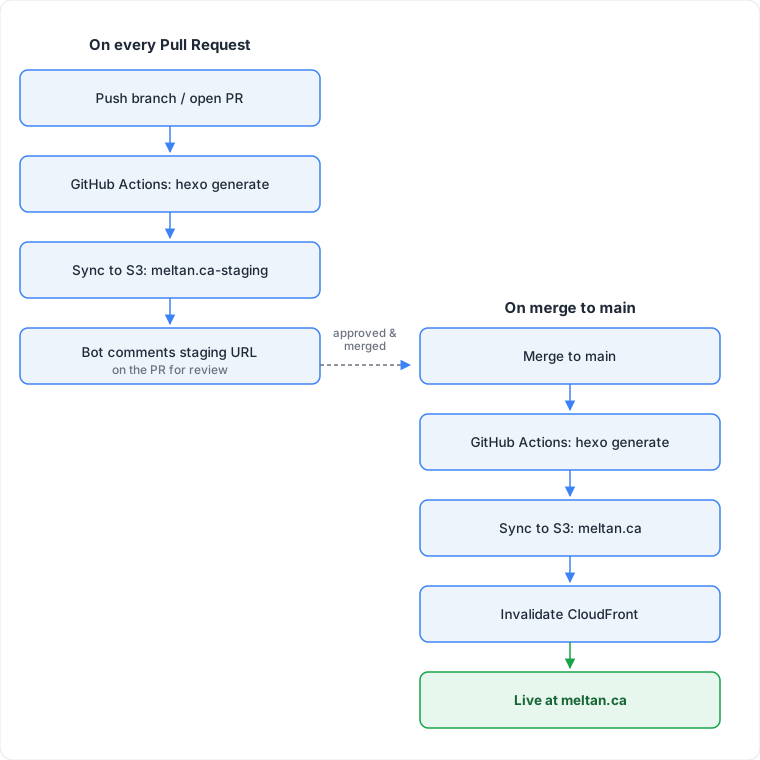
The deploy pipeline is the part I’m most pleased with. Every PR gets a real staging preview, and merging to main is what ships to production. It’s a GitOps workflow — git is the source of truth, and nothing goes live without a PR:

Deploy pipeline: on every PR, GitHub Actions builds and syncs to a staging S3 bucket and comments the preview URL; on merge to main, it builds again, syncs to the production bucket, and invalidates CloudFront

Staging and production run as separate GitHub Actions environments with their own scoped secrets, so a staging deploy has no path to production credentials. Production also sits behind CloudFront, serving pages from an edge location near the reader instead of a single S3 region — free CDN performance a comparable WordPress setup would need Varnish or a paid CDN in front of it to match.

Getting the WordPress equivalent — a second server, a second database, some way to preview changes safely — would roughly double the cost and the maintenance.

None of this required learning new tools for me. It’s the same GitHub Actions, S3, and CloudFront I already work with, pointed at a personal project instead of a company’s infrastructure. That’s really the point: the “advantage” isn’t just that it’s cheaper, it’s that it’s cheaper because it plays to skills I already have, instead of asking me to become a WordPress admin on the side.

Is it missing things WordPress gives you out of the box, like comments or search? Sure — but those are a Giscus embed or an Algolia index away, not a reason to run a database for a blog that gets a few hundred visits a month. And honestly, I’m not losing sleep over skipping comments — if anything, having them would cost me more sleep. They’re mostly just where the internet says things to strangers they’d never say to someone’s face.


Powered by Hexo and Hexo-theme-hiker

Copyright © 2013 - 2026 meltan.ca All Rights Reserved.

Melissa Tan hold copyright